
Avaya SAL (Secure Access Link) Connectivity
First we need to configure at least one SAL Connection in the AlarmTraq database. If this is your primary SAL connection that most sites will connect through you may wish to configure it as the Default SAL Connection (1).
The Default SAL Connection is automatically selected when a site is configured to use SAL (see below).
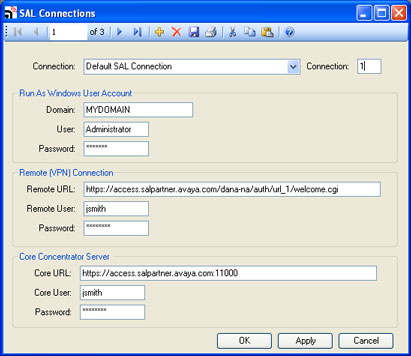
SAL Connections
After the SAL Connection has been configured we need to edit the Site-Profiles for the devices that need to connect throgh SAL.
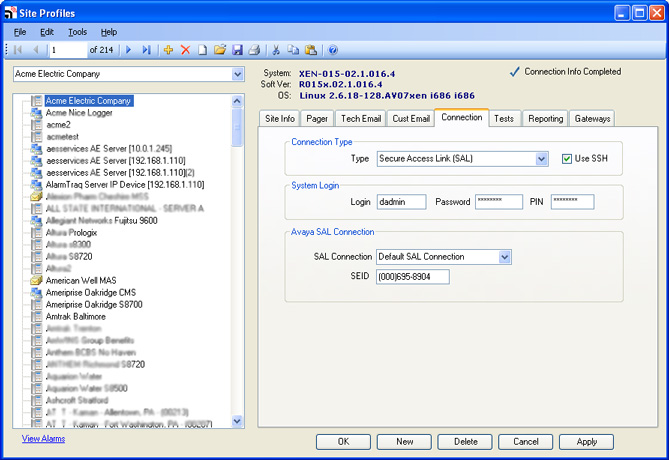
Site-Profiles
Testing the SAL Connection using SALBOT
Once you have a site configured to use the SAL connection, click on the Tests tab and click on the Test Now button. A connection will be attempted. This could take up to 90 seconds for the SALBOT connection to be established. Please wait...
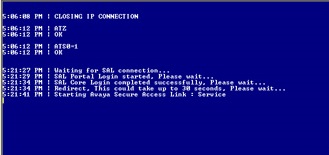
If your SAL connection requires you to connect through a Global Access Server (GAS) such as the hosted solution provided by Avaya you will be presented with the VPN login below, otherwise skip to next slide.
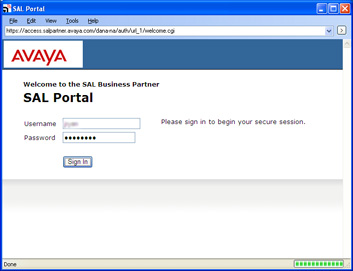
Once connected, you will need to login to the SAL Secure Access Concentrator Remote Server (Core)
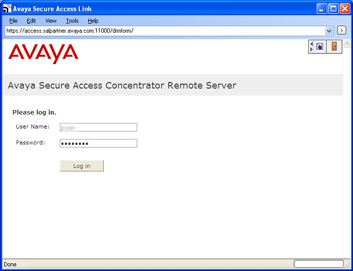
Anytime you use Avaya SAL, you will frequently be prompted to "Please wait..." get used to it. I'm sure you didn't have anything better to do anyway, right?
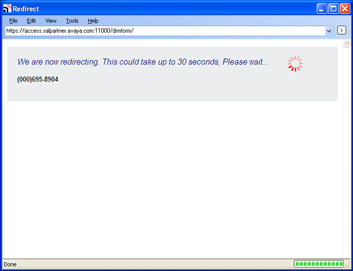
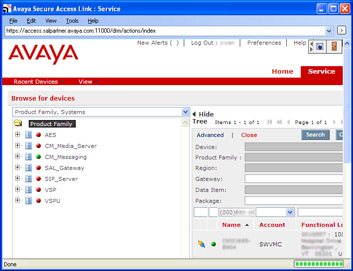
Once logged in to the core, we will search for the SEID associated with this site and if found attempt a connection.
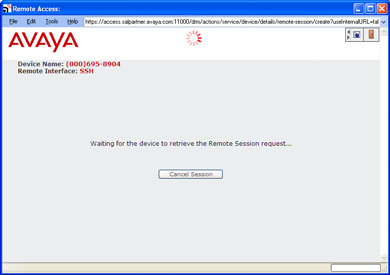
"Please wait..." waiting for the device to retrieve the Remote Session request...
The Java applet loads. "Please wait..."
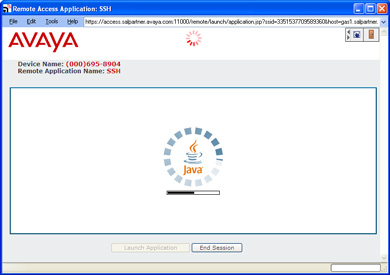
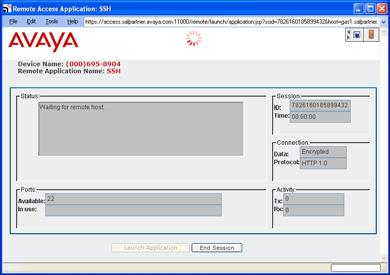
Waiting for remote host... "Please wait..."
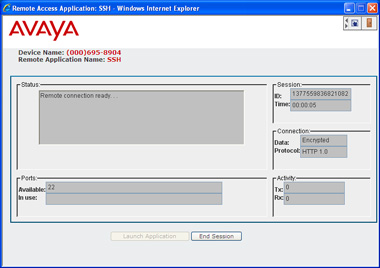
The remote host is now ready. AlarmTraq is notified.
Once AlarmTraq establishes a connection to the CM/Aura system it can finally perform any testing required.
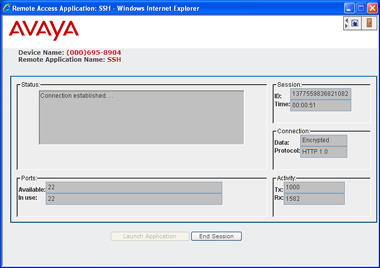
The SAL connection will be terminated once AlarmTraq disconnects from the IP connection. That's it.
Take a look at the demonstration video in the How-Do-I Video series. Thanks for waiting...